How to do a lab
Five minutes, with pictures. Everything runs in your browser: nothing to install.
Each lab is a notebook: a page that mixes short instructions with small pieces of Python code that you run, change and finish yourself. It runs inside your web browser, on the course website.
1 · Open the lab
On the lab’s page, click ▶︎ Start this lab in your browser. The first time, wait 10 to 20 seconds while Python loads into your browser.
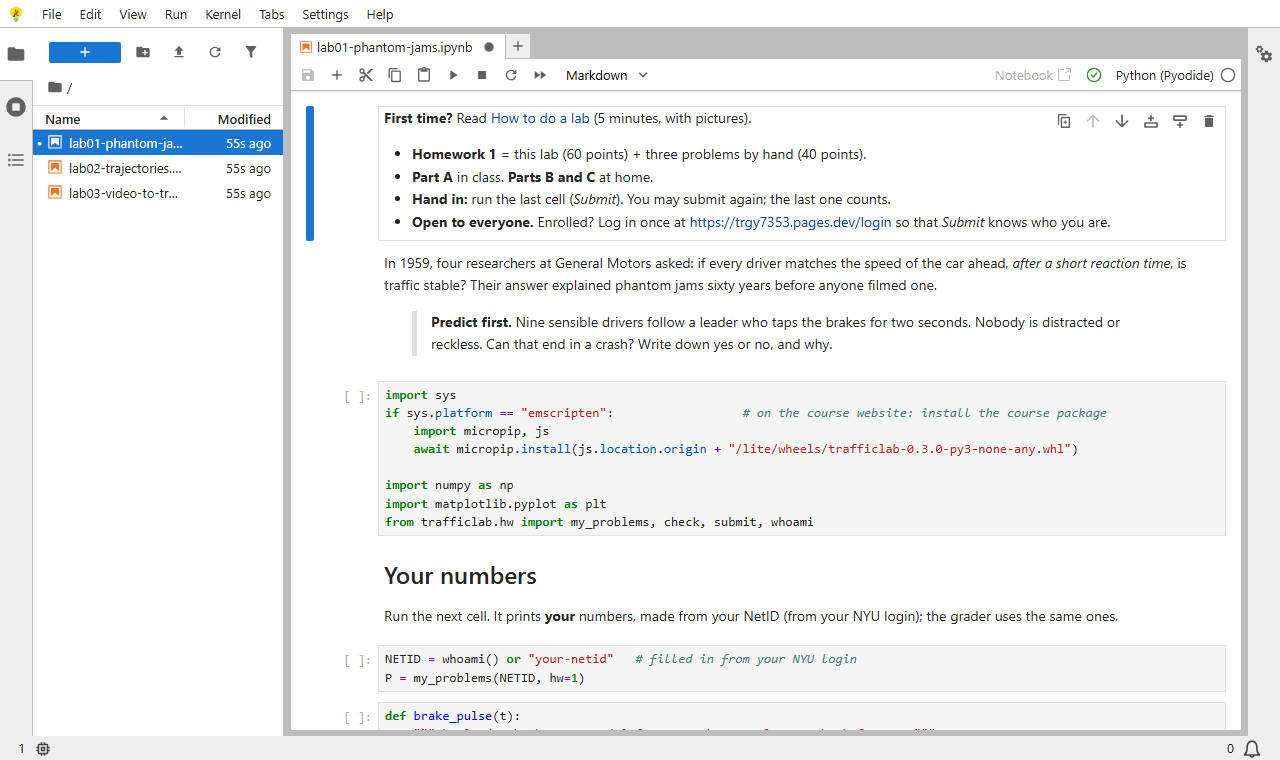
- Left: your files. Right: the notebook.
- The notebook is made of cells: text cells (instructions) and code cells (grey boxes).
- Use a computer, with Chrome, Edge or Firefox. A phone is too small.
2 · Run the cells, from the top
Click a code cell, then press Shift + Enter. The cell runs and the next one is selected. (Or click ▶ in the toolbar.)
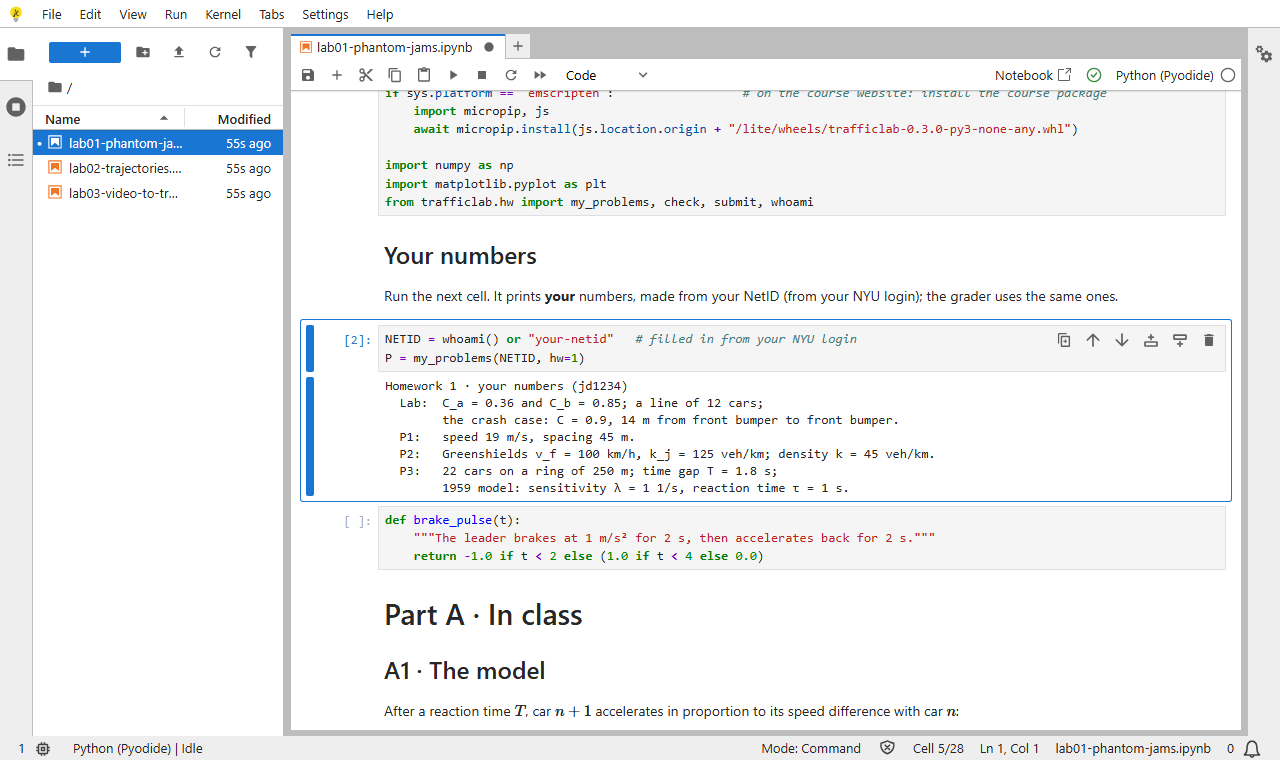
[ ]not run yet ·[*]running ·[5]done.- Always run the cells in order, from the top. Later cells use what earlier cells made.
- Near the top, the Your numbers cell prints your numbers. They are made from your NetID, and the grader uses the same ones.
3 · Your turn: finish the code
Where it says Do:, there is a code cell with a line # YOUR CODE HERE. Replace that line with your code.
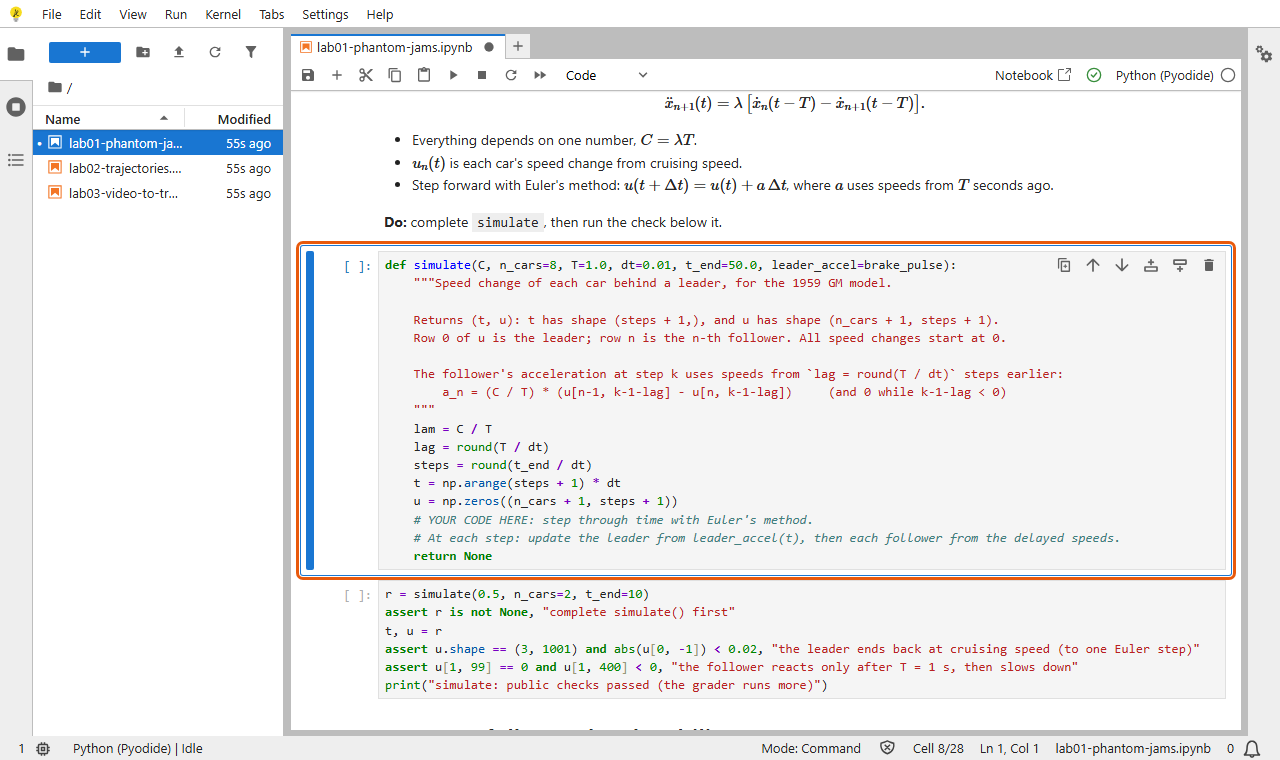
- Keep the function’s name and inputs. The grader calls it by that name.
- The text in triple quotes (the docstring) says exactly what the function must return.
4 · Check your work
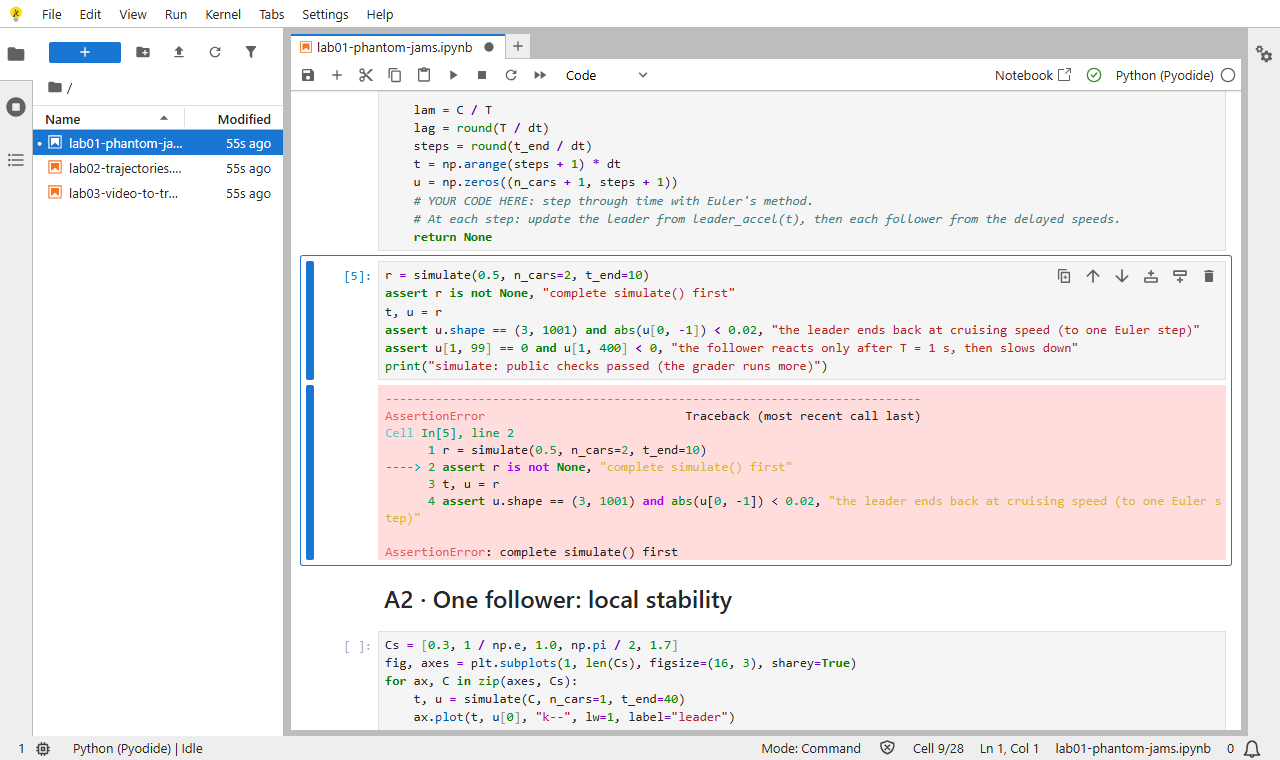
The cell right after each function checks it. Run it.
public checks passedmeans you are on track. The grader runs more tests, on data you have not seen.- A red box means not yet. Read the last line: it says what is wrong.
5 · Answer the questions
Multiple-choice questions ask you to choose A, B, C or D. Type your letter into the ANSWERS cell near the end, for example "Q2": "B". The numbers you computed go in there automatically.
6 · Problems by hand
Part C has three problems to solve on paper, with your own numbers.
- Write out each derivation and its final number.
- Take a photo or make a PDF. Name it so it starts with
derivation, for examplederivation-hw1.pdf. - Click upload (the arrow above the file list) and choose the file, or drag it into the file list.
- Type each final number into
ANSWERS.
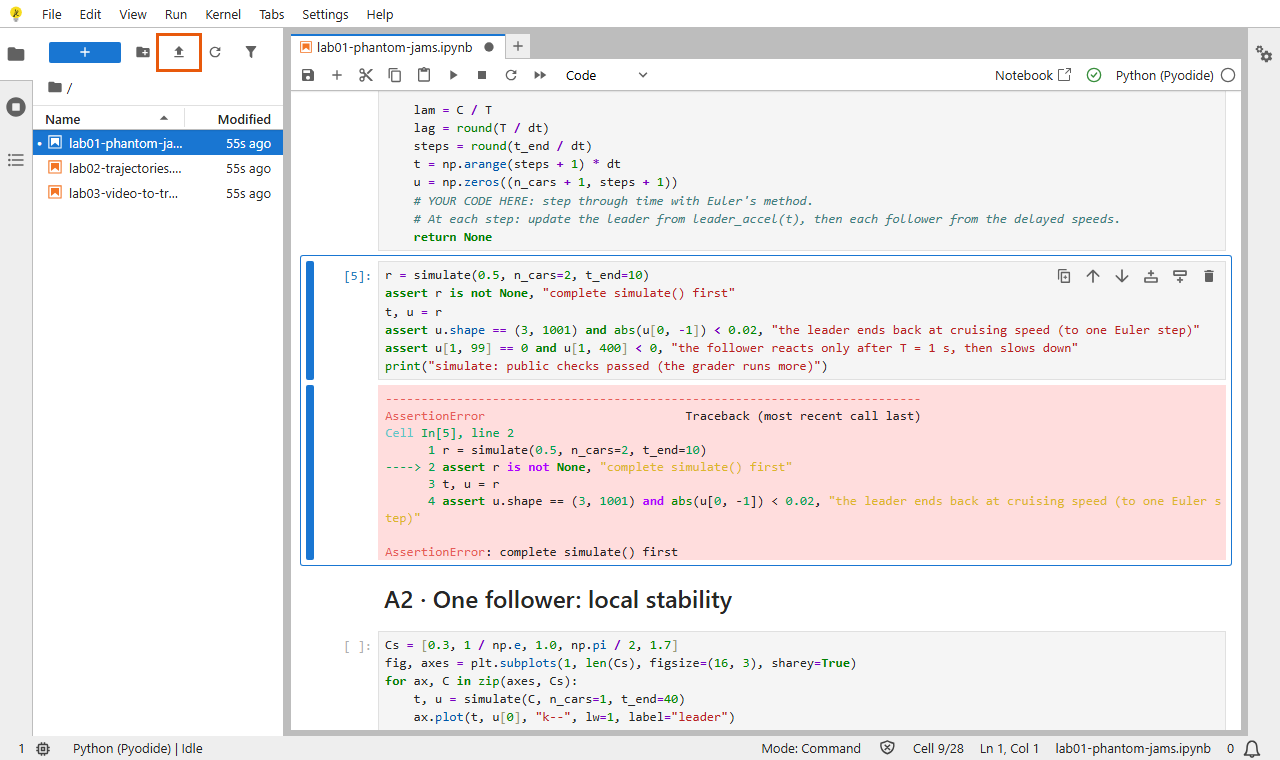
7 · Save and submit
- Save: Ctrl + S (on a Mac, Cmd + S).
- Run the last cell. It sends your answers, the notebook and your derivation file, and prints a receipt like this:
Submitted Homework 1 as jd1234 at 2027-02-05T21:14:03+00:00 (2 files: lab01-phantom-jams.ipynb, derivation-hw1.pdf).- You may submit as often as you like before the deadline. The last submission counts.
- Labs 1 and 2 are open to everyone. To submit, enrolled students log in once at trgy7353.pages.dev/login, in the same browser.
8 · Where your work is kept
Your work is saved in this browser, on this computer. The site does not keep a copy until you submit.
- Come back on the same computer and the same browser, and your work is still there.
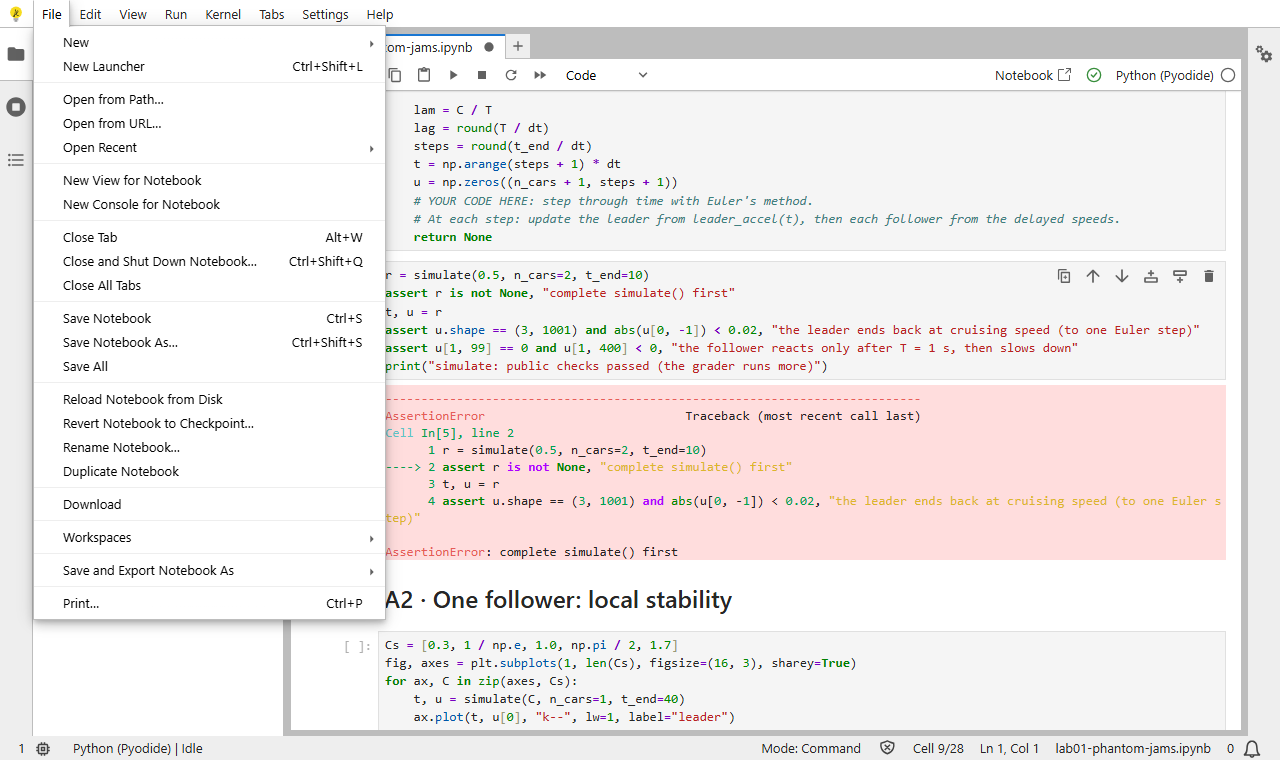
- Moving to another computer: File → Download, then upload the file there.
- Do not work in a private or incognito window: everything is lost when it closes.
- Clearing your browser’s data deletes your work. Download a copy first.
When something goes wrong
| What you see | What to do |
|---|---|
NameError: name 'np' is not defined (or another name) |
You skipped cells. Run → Run All Above Selected Cell, then try again. |
A cell stays at [*] |
Kernel → Restart Kernel, then Run → Run All Above Selected Cell. |
complete ... first |
Finish the function in the cell above. |
| Submit says you are not logged in | Open trgy7353.pages.dev/login in this browser, log in with your NYU email, run the last cell again. |
| Submit says the file is too large | Your photos are too big: the limit is 20 MB. Make a smaller PDF. |
| My derivation was not sent | Its name must start with derivation, and it must be in the same folder as the notebook. |
| The page stays blank | Reload the page. Use Chrome, Edge or Firefox on a computer. |
| My work is gone | It lives in the browser you used. Open the lab in that same browser on the same computer. |
Still stuck? Email the instructor with the lab number and a screenshot.